Upon completion of this lab, you will be able to:
- ✓ Configure EIGRP on Cisco routers using autonomous system 100
- ✓ Establish EIGRP neighbor relationships between routers
- ✓ Implement EIGRP MD5 authentication for secure routing updates
- ✓ Configure manual route summarization to optimize routing tables
- ✓ Verify EIGRP routing operations and neighbor adjacencies
- ✓ Troubleshoot common EIGRP configuration issues
- ✓ Analyze EIGRP metrics, topology, and routing decisions
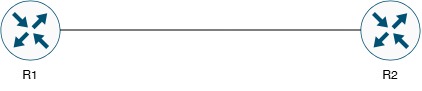
Figure 1: EIGRP Basic Configuration Topology
This lab consists of two routers (R1 and R2) connected via their GigabitEthernet0/0 interfaces. Each router has a loopback interface representing internal networks. EIGRP AS 100 will be configured to exchange routing information between both routers.
| Device Name | Device Type | Role | IOS Version |
|---|---|---|---|
| R1 | Cisco Router | EIGRP AS 100 Router | IOS 15.x or higher |
| R2 | Cisco Router | EIGRP AS 100 Router | IOS 15.x or higher |
| Device | Interface | IP Address | Subnet Mask | Default Gateway |
|---|---|---|---|---|
| R1 | GigabitEthernet0/0 | 203.18.64.1 | 255.255.255.252 (/30) | N/A |
| R1 | Loopback0 | 192.168.1.1 | 255.255.255.0 (/24) | N/A |
| R2 | GigabitEthernet0/0 | 203.18.64.2 | 255.255.255.252 (/30) | N/A |
| R2 | Loopback0 | 192.168.2.1 | 255.255.255.0 (/24) | N/A |
| Connection | Device 1 | Interface 1 | Device 2 | Interface 2 | Cable Type |
|---|---|---|---|---|---|
| WAN Link | R1 | GigabitEthernet0/0 | R2 | GigabitEthernet0/0 | Ethernet Crossover |
| Network Description | Network Address | Subnet Mask | CIDR | Usable IP Range | Purpose |
|---|---|---|---|---|---|
| WAN Link (R1-R2) | 203.18.64.0 | 255.255.255.252 | /30 | 203.18.64.1 - 203.18.64.2 | Point-to-Point WAN Connection |
| R1 Loopback Network | 192.168.1.0 | 255.255.255.0 | /24 | 192.168.1.1 - 192.168.1.254 | R1 Internal Network |
| R2 Loopback Network | 192.168.2.0 | 255.255.255.0 | /24 | 192.168.2.1 - 192.168.2.254 | R2 Internal Network |
• Basic understanding of IP routing and routing protocols
• Familiarity with Cisco IOS CLI commands
• Understanding of EIGRP concepts (hybrid protocol, DUAL algorithm)
• Knowledge of wildcard masks and network statements
• Access to Cisco routers or GNS3/Packet Tracer simulation environment
Configure the GigabitEthernet0/0 interface and Loopback0 on R1 with the appropriate IP addresses.
R1# configure terminal
R1(config)# hostname R1
! Configure GigabitEthernet0/0 interface
R1(config)# interface gigabitethernet 0/0
R1(config-if)# description ** WAN Link to R2 **
R1(config-if)# ip address 203.18.64.1 255.255.255.252
R1(config-if)# no shutdown
R1(config-if)# exit
! Configure Loopback0 interface
R1(config)# interface loopback 0
R1(config-if)# description ** R1 Internal Network **
R1(config-if)# ip address 192.168.1.1 255.255.255.0
R1(config-if)# no shutdown
R1(config-if)# exit
R1(config)# end
R1# write memory
Configure the GigabitEthernet0/0 interface and Loopback0 on R2 with the appropriate IP addresses.
R2# configure terminal
R2(config)# hostname R2
! Configure GigabitEthernet0/0 interface
R2(config)# interface gigabitethernet 0/0
R2(config-if)# description ** WAN Link to R1 **
R2(config-if)# ip address 203.18.64.2 255.255.255.252
R2(config-if)# no shutdown
R2(config-if)# exit
! Configure Loopback0 interface
R2(config)# interface loopback 0
R2(config-if)# description ** R2 Internal Network **
R2(config-if)# ip address 192.168.2.1 255.255.255.0
R2(config-if)# no shutdown
R2(config-if)# exit
R2(config)# end
R2# write memory
Verify that all interfaces are configured correctly and in the "up/up" state.
! Expected Output:
! Interface IP-Address OK? Method Status Protocol
! GigabitEthernet0/0 203.18.64.1 YES manual up up
! Loopback0 192.168.1.1 YES manual up up
! Expected Output:
! Interface IP-Address OK? Method Status Protocol
! GigabitEthernet0/0 203.18.64.2 YES manual up up
! Loopback0 192.168.2.1 YES manual up up
Verify Layer 3 connectivity between R1 and R2 before configuring EIGRP.
! Expected Output:
! Type escape sequence to abort.
! Sending 5, 100-byte ICMP Echos to 203.18.64.2, timeout is 2 seconds:
! !!!!!
! Success rate is 100 percent (5/5), round-trip min/avg/max = 1/2/4 ms
Enable EIGRP routing process with AS number 100 and advertise all directly connected networks.
! Enable EIGRP routing process with AS 100
R1(config)# router eigrp 100
! Advertise the WAN link network
R1(config-router)# network 203.18.64.0 0.0.0.3
! Advertise the Loopback0 network
R1(config-router)# network 192.168.1.0 0.0.0.255
! Disable auto-summary for classless routing
R1(config-router)# no auto-summary
! Configure Router ID (optional but recommended)
R1(config-router)# eigrp router-id 1.1.1.1
R1(config-router)# exit
R1(config)# end
R1# write memory
Enable EIGRP routing process with AS number 100 and advertise all directly connected networks.
! Enable EIGRP routing process with AS 100
R2(config)# router eigrp 100
! Advertise the WAN link network
R2(config-router)# network 203.18.64.0 0.0.0.3
! Advertise the Loopback0 network
R2(config-router)# network 192.168.2.0 0.0.0.255
! Disable auto-summary for classless routing
R2(config-router)# no auto-summary
! Configure Router ID (optional but recommended)
R2(config-router)# eigrp router-id 2.2.2.2
R2(config-router)# exit
R2(config)# end
R2# write memory
• Wildcard Mask: 0.0.0.3 matches IPs from .0 to .3 (4 addresses in /30 subnet)
• Wildcard Mask: 0.0.0.255 matches all IPs in /24 subnet
• no auto-summary: Prevents EIGRP from summarizing to classful boundaries
• Router ID: Should be unique per router; typically use loopback IP or highest interface IP
Confirm that R1 and R2 have established EIGRP neighbor adjacency.
! Expected Output:
! EIGRP-IPv4 Neighbors for AS(100)
! H Address Interface Hold Uptime SRTT RTO Q Seq
! (sec) (ms) Cnt Num
! 0 203.18.64.2 Gi0/0 14 00:01:23 5 100 0 3
! Expected Output:
! EIGRP-IPv4 Neighbors for AS(100)
! H Address Interface Hold Uptime SRTT RTO Q Seq
! (sec) (ms) Cnt Num
! 0 203.18.64.1 Gi0/0 13 00:01:24 4 100 0 2
Check that EIGRP routes are being exchanged and installed in the routing table.
! Expected Output:
! Codes: L - local, C - connected, S - static, R - RIP, M - mobile, B - BGP
! D - EIGRP, EX - EIGRP external, O - OSPF, IA - OSPF inter area
!
! 192.168.2.0/24 is subnetted, 1 subnets
! D 192.168.2.0 [90/130816] via 203.18.64.2, 00:01:45, GigabitEthernet0/0
! Expected Output:
! 192.168.1.0/24 is subnetted, 1 subnets
! D 192.168.1.0 [90/130816] via 203.18.64.1, 00:01:46, GigabitEthernet0/0
• EIGRP neighbor relationship is established (Hold timer shows 10-15 seconds)
• Routes are marked with "D" (EIGRP) in the routing table
• Administrative Distance is 90 for internal EIGRP routes
• Metric is displayed in brackets [90/130816]
Verify that R1 can reach R2's loopback network and vice versa.
! Expected Output:
! Type escape sequence to abort.
! Sending 5, 100-byte ICMP Echos to 192.168.2.1, timeout is 2 seconds:
! Packet sent with a source address of 192.168.1.1
! !!!!!
! Success rate is 100 percent (5/5), round-trip min/avg/max = 1/2/4 ms
! Expected Output:
! Type escape sequence to abort.
! Sending 5, 100-byte ICMP Echos to 192.168.1.1, timeout is 2 seconds:
! Packet sent with a source address of 192.168.2.1
! !!!!!
! Success rate is 100 percent (5/5), round-trip min/avg/max = 1/2/4 ms
EIGRP authentication ensures that only routers with the correct key can form neighbor relationships, preventing unauthorized routers from injecting false routing information.
Task 3.1: Configure Key Chain on R1! Create key chain for EIGRP authentication
R1(config)# key chain EIGRP-KEYS
! Define key 1 with password
R1(config-keychain)# key 1
R1(config-keychain-key)# key-string Cisco123!
R1(config-keychain-key)# exit
R1(config-keychain)# exit
! Apply authentication to interface
R1(config)# interface gigabitethernet 0/0
R1(config-if)# ip authentication mode eigrp 100 md5
R1(config-if)# ip authentication key-chain eigrp 100 EIGRP-KEYS
R1(config-if)# exit
R1(config)# end
R1# write memory
! Create key chain for EIGRP authentication
R2(config)# key chain EIGRP-KEYS
! Define key 1 with password (MUST MATCH R1)
R2(config-keychain)# key 1
R2(config-keychain-key)# key-string Cisco123!
R2(config-keychain-key)# exit
R2(config-keychain)# exit
! Apply authentication to interface
R2(config)# interface gigabitethernet 0/0
R2(config-if)# ip authentication mode eigrp 100 md5
R2(config-if)# ip authentication key-chain eigrp 100 EIGRP-KEYS
R2(config-if)# exit
R2(config)# end
R2# write memory
• The key-string password MUST be exactly the same on both routers (case-sensitive)
• If passwords don't match, EIGRP neighbor relationship will fail
• Authentication must be configured on all routers in the EIGRP domain
• When enabling authentication, there may be a brief neighbor flap
! Verify neighbor is still up after authentication
! Expected Output:
! EIGRP-IPv4 Neighbors for AS(100)
! H Address Interface Hold Uptime SRTT RTO Q Seq
! (sec) (ms) Cnt Num
! 0 203.18.64.2 Gi0/0 14 00:00:45 5 100 0 8
! Expected Output (verify authentication is enabled):
! EIGRP-IPv4 Interfaces for AS(100)
! Xmit Queue PeerQ Mean Pacing Time Multicast Pending
! Interface Peers Un/Reliable Un/Reliable SRTT Un/Reliable Flow Timer Routes
! Gi0/0 1 0/0 0/0 5 0/1 50 0
! Hello-interval is 5, Hold-time is 15
! Split-horizon is enabled
! Next xmit serial
! Packetized sent/expedited: 8/0
! Hello's sent/expedited: 245/2
! Un/reliable mcasts: 0/4 Un/reliable ucasts: 5/4
! Mcast exceptions: 0 CR packets: 0 ACKs suppressed: 0
! Retransmissions sent: 1 Out-of-sequence rcvd: 0
! Authentication mode is md5, key-chain is "EIGRP-KEYS"
To verify authentication is working, temporarily change the password on one router.
R2(config)# key chain EIGRP-KEYS
R2(config-keychain)# key 1
R2(config-keychain-key)# key-string WrongPassword
R2(config-keychain-key)# end
! Wait 15-20 seconds and check neighbors
R2# show ip eigrp neighbors
! Expected: No neighbors shown (authentication mismatch)
! Check for authentication errors
R2# debug eigrp packets
! You will see authentication failures
! Restore correct password
R2(config)# key chain EIGRP-KEYS
R2(config-keychain)# key 1
R2(config-keychain-key)# key-string Cisco123!
R2(config-keychain-key)# end
R2# undebug all
! Neighbor should re-establish within 15-20 seconds
• EIGRP authentication mode is MD5
• Key-chain "EIGRP-KEYS" is properly configured
• Neighbor relationships remain stable with correct authentication
• Mismatched passwords prevent neighbor formation
Manual route summarization reduces routing table size and improves network scalability by advertising aggregated routes instead of individual subnets.
In this lab, we'll configure R1 to summarize its 192.168.1.0/24 network, and R2 to summarize its 192.168.2.0/24 network. In a real-world scenario with multiple subnets, summarization becomes even more valuable.
Configure R1 to advertise a summary route for the 192.168.1.0/24 network.
! Configure route summarization on the outbound interface
R1(config)# interface gigabitethernet 0/0
R1(config-if)# ip summary-address eigrp 100 192.168.1.0 255.255.255.0
R1(config-if)# exit
R1(config)# end
R1# write memory
Configure R2 to advertise a summary route for the 192.168.2.0/24 network.
! Configure route summarization on the outbound interface
R2(config)# interface gigabitethernet 0/0
R2(config-if)# ip summary-address eigrp 100 192.168.2.0 255.255.255.0
R2(config-if)# exit
R2(config)# end
R2# write memory
• Summarization is configured on the outbound interface
• When a summary is created, EIGRP automatically creates a Null0 route to prevent routing loops
• Summary routes have a lower metric than component routes
• In this simple topology, summarization doesn't change routing behavior but demonstrates the concept
! Expected Output (summary route from R2):
! 192.168.2.0/24 is subnetted, 1 subnets
! D 192.168.2.0 [90/130816] via 203.18.64.2, 00:00:30, GigabitEthernet0/0
! Check for automatically created Null0 summary route
! Expected Output:
! Routing entry for 192.168.1.0/24
! Known via "connected", distance 0, metric 0 (connected, via interface)
! Routing Descriptor Blocks:
! * directly connected, via Loopback0
!
! D 192.168.1.0/24 is a summary, 00:00:45, Null0
! Expected Output (summary route from R1):
! 192.168.1.0/24 is subnetted, 1 subnets
! D 192.168.1.0 [90/130816] via 203.18.64.1, 00:00:32, GigabitEthernet0/0
! Expected Output showing both local and remote networks
! EIGRP-IPv4 Topology Table for AS(100)/ID(1.1.1.1)
! Codes: P - Passive, A - Active, U - Update, Q - Query, R - Reply,
! r - reply Status, s - sia Status
!
! P 192.168.1.0/24, 1 successors, FD is 128256
! via Summary (128256/0), Null0
! via Connected, Loopback0
! P 192.168.2.0/24, 1 successors, FD is 130816
! via 203.18.64.2 (130816/128256), GigabitEthernet0/0
! P 203.18.64.0/30, 1 successors, FD is 2816
! via Connected, GigabitEthernet0/0
! Expected Output:
! Type escape sequence to abort.
! Sending 5, 100-byte ICMP Echos to 192.168.2.1, timeout is 2 seconds:
! Packet sent with a source address of 192.168.1.1
! !!!!!
! Success rate is 100 percent (5/5), round-trip min/avg/max = 1/2/4 ms
• Summary routes are configured on outbound interfaces
• Null0 routes are automatically created for loop prevention
• Routing tables show summarized routes from neighbors
• End-to-end connectivity is maintained
! R1 Complete Configuration - Lab 12.1
!
hostname R1
!
! Key Chain for EIGRP Authentication
key chain EIGRP-KEYS
key 1
key-string Cisco123!
!
! Interface Configuration
interface Loopback0
description ** R1 Internal Network **
ip address 192.168.1.1 255.255.255.0
!
interface GigabitEthernet0/0
description ** WAN Link to R2 **
ip address 203.18.64.1 255.255.255.252
ip authentication mode eigrp 100 md5
ip authentication key-chain eigrp 100 EIGRP-KEYS
ip summary-address eigrp 100 192.168.1.0 255.255.255.0
no shutdown
!
! EIGRP Configuration
router eigrp 100
network 192.168.1.0 0.0.0.255
network 203.18.64.0 0.0.0.3
no auto-summary
eigrp router-id 1.1.1.1
!
line con 0
logging synchronous
exec-timeout 0 0
!
end
! R2 Complete Configuration - Lab 12.1
!
hostname R2
!
! Key Chain for EIGRP Authentication
key chain EIGRP-KEYS
key 1
key-string Cisco123!
!
! Interface Configuration
interface Loopback0
description ** R2 Internal Network **
ip address 192.168.2.1 255.255.255.0
!
interface GigabitEthernet0/0
description ** WAN Link to R1 **
ip address 203.18.64.2 255.255.255.252
ip authentication mode eigrp 100 md5
ip authentication key-chain eigrp 100 EIGRP-KEYS
ip summary-address eigrp 100 192.168.2.0 255.255.255.0
no shutdown
!
! EIGRP Configuration
router eigrp 100
network 192.168.2.0 0.0.0.255
network 203.18.64.0 0.0.0.3
no auto-summary
eigrp router-id 2.2.2.2
!
line con 0
logging synchronous
exec-timeout 0 0
!
end
R1# show ip eigrp neighbors detail
! Check neighbor state, hold timer, uptime, SRTT, and queue counts
R1# show ip route eigrp
R1# show ip route 192.168.2.0
! Verify EIGRP routes are learned (marked with "D")
! Check administrative distance [90] and metric
R1# show ip eigrp topology all-links
! View successor and feasible successor routes
! Check Feasible Distance (FD) and Reported Distance (RD)
R1# show ip eigrp interfaces detail gigabitethernet 0/0
! Verify interfaces participating in EIGRP
! Confirm authentication is enabled (md5, key-chain name)
! Display EIGRP AS number, Router ID, networks advertised
! Check administrative distance and maximum paths
R1# show ip eigrp interfaces detail gigabitethernet 0/0 | include Auth
! Verify key chain configuration
! Confirm authentication mode and key-chain name
R1# show ip eigrp topology | include Summary
! Check for automatically created Null0 routes
! Verify summary routes in topology table
R1# traceroute 192.168.2.1 source 192.168.1.1
! Test connectivity between loopback networks
! Verify routing path
! Display EIGRP packet statistics (Hello, Update, Query, Reply, ACK)
R1# debug ip eigrp
R1# debug ip eigrp neighbor
! Monitor EIGRP operations in real-time
! Always disable debug when done: undebug all
- ☑ All interfaces are configured with correct IP addresses
- ☑ All interfaces are in "up/up" state
- ☑ Basic ping connectivity works between R1 and R2 (203.18.64.1 ↔ 203.18.64.2)
- ☑ EIGRP AS 100 is configured on both routers
- ☑ Network statements match all required subnets with correct wildcard masks
- ☑ "no auto-summary" is configured on both routers
- ☑ EIGRP Router IDs are configured (1.1.1.1 and 2.2.2.2)
- ☑ EIGRP neighbor relationship is established (show ip eigrp neighbors)
- ☑ EIGRP routes are present in routing table (D routes)
- ☑ R1 can see 192.168.2.0/24 via EIGRP
- ☑ R2 can see 192.168.1.0/24 via EIGRP
- ☑ MD5 authentication is configured on both routers
- ☑ Key chains are identical (EIGRP-KEYS with key-string Cisco123!)
- ☑ Authentication is active on GigabitEthernet0/0 interfaces
- ☑ Neighbor relationship remains stable after authentication
- ☑ Route summarization is configured on both routers
- ☑ Null0 summary routes are automatically created
- ☑ End-to-end ping works (192.168.1.1 ↔ 192.168.2.1)
- ☑ Traceroute shows correct routing path
- ☑ Configuration is saved on both routers (write memory)
• "show ip eigrp neighbors" shows no neighbors
• EIGRP routes are not appearing in routing table
• No EIGRP updates being received
| Cause | Verification Command | Solution |
|---|---|---|
| Mismatched AS numbers | show ip protocols | Ensure both routers use AS 100: router eigrp 100 |
| Authentication mismatch | debug eigrp packets | Verify key-string matches exactly on both routers |
| Incorrect network statement | show ip eigrp interfaces | Add network statement: network 203.18.64.0 0.0.0.3 |
| Interface is down | show ip interface brief | Enable interface: no shutdown |
| ACL blocking EIGRP | show ip interface | Remove or modify ACL to permit EIGRP (protocol 88) |
| Mismatched K-values | show ip protocols | Ensure K-values match (default: K1=1, K2=0, K3=1, K4=0, K5=0) |
R1# show ip protocols
! Look for "Routing Protocol is eigrp 100"
! Step 2: Check if interfaces are in EIGRP
R1# show ip eigrp interfaces
! GigabitEthernet0/0 should be listed
! Step 3: Enable EIGRP debugging (use carefully)
R1# debug eigrp packets
! Look for authentication failures or packet drops
! Step 4: Check for authentication errors
R1# show ip eigrp interfaces detail gi0/0
! Verify: "Authentication mode is md5, key-chain is 'EIGRP-KEYS'"
! Step 5: Disable debug
R1# undebug all
• Neighbors were forming but stopped after adding authentication
• Log messages showing authentication failures
• Neighbor relationship keeps flapping
R1# show key chain
! Expected: Key chain EIGRP-KEYS:
! key 1 -- text "Cisco123!"
! Step 2: Compare key-strings on both routers
! Key-string is case-sensitive and must match EXACTLY
! Step 3: Verify authentication is applied to correct interface
R1# show run interface gigabitethernet 0/0
! Look for:
! ip authentication mode eigrp 100 md5
! ip authentication key-chain eigrp 100 EIGRP-KEYS
! Step 4: Check for typos in key chain name
! "EIGRP-KEYS" is case-sensitive
! Step 5: Temporarily remove authentication to test
R1(config)# interface gigabitethernet 0/0
R1(config-if)# no ip authentication mode eigrp 100
R1(config-if)# no ip authentication key-chain eigrp 100
! If neighbor forms, authentication config was the issue
• Neighbors are established but routes not in routing table
• "show ip eigrp topology" shows routes but not in "show ip route"
• Ping fails to remote networks
R1# show ip eigrp topology
! If routes are here but not in routing table, check next steps
! Step 2: Check for better routes from other protocols
R1# show ip route 192.168.2.0
! Another protocol with better AD might be preferred
! Step 3: Verify network statements on remote router
R2# show ip protocols
! Ensure R2 is advertising the network with "network" statement
! Step 4: Check if auto-summary is causing issues
R1# show run | include auto-summary
! Should see "no auto-summary" under router eigrp 100
! Step 5: Verify routing table has space
R1# show ip route summary
! Check if maximum routes limit is reached (unlikely in lab)
• EIGRP neighbors are up
• Routes appear in routing table
• Ping still fails between loopback networks
R1# show ip route 192.168.2.0
! Should show EIGRP route via 203.18.64.2
! Step 2: Test connectivity to next-hop
R1# ping 203.18.64.2
! If this fails, check interface status
! Step 3: Use extended ping with source
R1# ping 192.168.2.1 source 192.168.1.1
! Step 4: Trace the routing path
R1# traceroute 192.168.2.1 source 192.168.1.1
! Shows where packets are being dropped
! Step 5: Check for ACLs blocking traffic
R1# show ip access-lists
R1# show ip interface gigabitethernet 0/0 | include access list
! Step 6: Check if loopback interface is up
R2# show ip interface brief | include Loopback
! Loopback0 should be up/up
! Step 7: Verify IP addressing is correct
R1# show ip interface loopback 0
R2# show ip interface loopback 0
• Summary routes not appearing in neighbor's routing table
• Null0 route not created automatically
• Specific routes still being advertised
R1# show run interface gigabitethernet 0/0
! Look for: ip summary-address eigrp 100 192.168.1.0 255.255.255.0
! Step 2: Check if Null0 route was created
R1# show ip route | include Null
! Should show: D 192.168.1.0/24 is a summary, Null0
! Step 3: Verify summary in topology table
R1# show ip eigrp topology | include Summary
! Step 4: Check remote router's routing table
R2# show ip route eigrp
! Should receive summary route, not specific subnets
! Step 5: Ensure component routes exist
R1# show ip route 192.168.1.0
! Summary requires at least one component route to be active
• Router CPU usage is high
• EIGRP process consuming excessive resources
• Network instability or flapping neighbors
R1# show ip eigrp topology | include Active
! Active routes indicate queries in progress (SIA condition)
! Step 2: Check neighbor stability
R1# show ip eigrp neighbors
! Look at uptime - frequent resets indicate instability
! Step 3: Review EIGRP traffic statistics
R1# show ip eigrp traffic
! High query or reply counts may indicate problems
! Step 4: Check for routing loops
R1# show ip route
! Look for unexpected routing paths
! Step 5: Stabilize network with route summarization
! Implement summarization to reduce topology changes
! Step 6: Consider EIGRP stub configuration
! For routers at edge of network:
R1(config-router)# eigrp stub connected summary
| Mistake | Symptom | Correction |
|---|---|---|
| Wrong wildcard mask | Interface not in EIGRP | Use 0.0.0.3 for /30, 0.0.0.255 for /24 |
| Forgot "no auto-summary" | Classful routing behavior | Add: no auto-summary under router eigrp 100 |
| Authentication password mismatch | Neighbors won't form | Ensure key-string matches exactly (case-sensitive) |
| Wrong AS number | No neighbor adjacency | Both routers must use same AS (100) |
| Summary on wrong interface | Summary not working | Configure summary on outbound interface |
| Forgot to save config | Config lost after reload | Always use: write memory or copy run start |
R1# debug eigrp packets ! All EIGRP packets
R1# debug eigrp packets hello ! Only Hello packets
R1# debug eigrp packets update ! Only Update packets
R1# debug eigrp packets query ! Only Query packets
R1# debug eigrp packets reply ! Only Reply packets
R1# debug eigrp packets ack ! Only ACK packets
R1# debug ip eigrp ! EIGRP protocol events
R1# debug ip eigrp neighbor ! Neighbor events
R1# debug ip eigrp summary ! Summarization events
R1# debug eigrp fsm ! DUAL FSM events
! Disable all debugging
R1# undebug all
R1# no debug all
R1# debug condition interface gigabitethernet 0/0
R1# debug eigrp packets
! View active debug conditions
R1# show debug condition
! Remove debug condition
R1# no debug condition all
R1# undebug all
- ✓ EIGRP is a Cisco proprietary advanced distance-vector (hybrid) routing protocol
- ✓ Uses Autonomous System (AS) number to identify routing domain
- ✓ Only routers in the same AS can become neighbors
- ✓ Uses multicast address 224.0.0.10 for neighbor discovery and updates
- ✓ Protocol number 88 (not TCP or UDP)
- ✓ Administrative Distance: Internal=90, External=170
- ✓ Hello packets establish and maintain neighbor relationships
- ✓ Default Hello interval: 5 seconds (broadcast/P2P), 60 seconds (NBMA)
- ✓ Default Hold timer: 3x Hello interval (15 or 180 seconds)
- ✓ Requirements for neighborship: Same AS, matching K-values, authentication (if configured)
- ✓ Neighbors must be on same subnet (primary IP)
- ✓ Composite metric based on Bandwidth and Delay by default
- ✓ Formula: Metric = 256 × (K1 × Bandwidth + (K2 × Bandwidth)/(256 - Load) + K3 × Delay)
- ✓ Default K-values: K1=1 (Bandwidth), K2=0 (Load), K3=1 (Delay), K4=0 (Reliability), K5=0 (MTU)
- ✓ Simplified formula: Metric = (107 / Minimum Bandwidth + Cumulative Delay) × 256
- ✓ Bandwidth in kbps, Delay in tens of microseconds
- ✓ Diffusing Update Algorithm (DUAL) ensures loop-free routing
- ✓ Feasible Distance (FD): Best metric to reach destination
- ✓ Reported Distance (RD): Neighbor's metric to reach destination
- ✓ Successor: Best path to destination (lowest FD)
- ✓ Feasible Successor: Backup path meeting feasibility condition (RD < FD)
- ✓ Topology changes trigger updates only to affected neighbors
- ✓ MD5 authentication ensures only authorized routers exchange routing information
- ✓ Key chain defines authentication keys with optional lifetime
- ✓ Authentication is configured per-interface, not globally
- ✓ Key-string must match exactly on both neighbors (case-sensitive)
- ✓ Multiple keys can be configured for smooth key rollover
- ✓ Authentication prevents man-in-the-middle attacks and unauthorized routing updates
- ✓ Manual summarization reduces routing table size and improves scalability
- ✓ Configured on outbound interface: ip summary-address eigrp [AS] [network] [mask]
- ✓ Automatically creates Null0 route to prevent routing loops
- ✓ Summary metric is based on best component route
- ✓ Reduces query scope and improves convergence time
- ✓ No auto-summary recommended for modern networks (classless routing)
- ✓ Network statement enables EIGRP on matching interfaces
- ✓ Uses wildcard mask (inverse of subnet mask)
- ✓ Can be specific (0.0.0.3 for single /30) or broad (0.0.0.255 for /24)
- ✓ Advertises connected networks on enabled interfaces
- ✓ Passive-interface prevents neighbor formation but still advertises network
- ✓ Always configure "no auto-summary" for classless routing
- ✓ Use MD5 authentication on all EIGRP links
- ✓ Configure unique Router IDs (typically use loopback IP)
- ✓ Implement route summarization at network boundaries
- ✓ Use passive-interface for non-transit networks (user VLANs, servers)
- ✓ Document AS numbers and authentication keys
- ✓ Use stub routing at edge sites to reduce query domain
- ✓ Monitor neighbor relationships for stability
- ✓ Verify physical connectivity first (ping next-hop)
- ✓ Check interface status (show ip interface brief)
- ✓ Confirm EIGRP is running (show ip protocols)
- ✓ Verify neighbor adjacencies (show ip eigrp neighbors)
- ✓ Check routing table (show ip route eigrp)
- ✓ Review EIGRP topology (show ip eigrp topology)
- ✓ Use debug carefully and disable when done
- ✓ CCNP 350-401 ENCOR: Section 3.2 (EIGRP configuration and verification)
- ✓ CCNP 300-410 ENARSI: Section 2.1 (EIGRP implementation)
- ✓ CCNP 300-410 ENARSI: Section 2.2 (EIGRP authentication and security)
- ✓ CCNP 300-410 ENARSI: Section 2.3 (EIGRP optimization and troubleshooting)
Once you've completed the basic lab, try these advanced scenarios:
Extension 1: Unequal Cost Load BalancingR1(config)# router eigrp 100
R1(config-router)# variance 2
! Allows load balancing across paths with metrics up to 2x the best metric
R1(config)# interface loopback 1
R1(config-if)# ip address 10.1.1.1 255.255.255.0
R1(config)# router eigrp 100
R1(config-router)# network 10.1.1.0 0.0.0.255
R1(config-router)# passive-interface loopback 1
! Network advertised but no neighbor relationships on this interface
R2(config)# router eigrp 100
R2(config-router)# eigrp stub connected summary
! Reduces query domain, improves convergence
R1(config)# router eigrp LAB-EIGRP
R1(config-router)# address-family ipv4 unicast autonomous-system 100
R1(config-router-af)# network 192.168.1.0 0.0.0.255
R1(config-router-af)# network 203.18.64.0 0.0.0.3
R1(config-router-af)# eigrp router-id 1.1.1.1
! Named mode provides more flexibility and IPv6 support
R1(config)# interface gigabitethernet 0/0
R1(config-if)# bandwidth 100000
R1(config-if)# delay 100
! Delay in tens of microseconds
R1(config)# access-list 1 deny 192.168.2.0 0.0.0.255
R1(config)# access-list 1 permit any
R1(config)# router eigrp 100
R1(config-router)# distribute-list 1 in
! Prevents 192.168.2.0/24 from being installed in routing table
R1(config)# interface gigabitethernet 0/0
R1(config-if)# ip hello-interval eigrp 100 1
R1(config-if)# ip hold-time eigrp 100 3
! Use with caution - aggressive timers can cause instability
- 📘 Cisco EIGRP Configuration Guide
- 📘 Cisco EIGRP Design Guide
- 📘 CCNP Enterprise 350-401 ENCOR Official Cert Guide
- 📘 CCNP Enterprise 300-410 ENARSI Official Cert Guide
- 📘 Cisco IOS IP Routing Configuration Guide
router eigrp [AS-number]
network [network] [wildcard-mask]
no auto-summary
eigrp router-id [router-id]
ip authentication mode eigrp [AS] md5
ip authentication key-chain eigrp [AS] [key-chain-name]
ip summary-address eigrp [AS] [network] [mask]
! Verification Commands
show ip eigrp neighbors
show ip eigrp topology
show ip eigrp interfaces
show ip protocols
show ip route eigrp
show ip eigrp traffic
show key chain
! Troubleshooting Commands
debug eigrp packets
debug ip eigrp
debug ip eigrp neighbor
show ip eigrp topology all-links
show ip eigrp interfaces detail
You have successfully completed Lab 12.1: EIGRP Basic Configuration, Authentication & Route Summarization.
Skills Mastered:
• EIGRP basic configuration using classic mode
• Network statements with wildcard masks
• EIGRP neighbor relationships and verification
• MD5 authentication for secure routing updates
• Manual route summarization with Null0 routes
• Comprehensive troubleshooting methodology
• EIGRP verification and monitoring techniques
Next Steps:
• Practice the lab multiple times until configuration becomes second nature
• Try the lab extension scenarios to deepen your understanding
• Move on to advanced EIGRP topics (named mode, redistribution, advanced filtering)
• Review CCNP ENCOR and ENARSI exam objectives related to EIGRP
• Build more complex multi-router EIGRP topologies
• Keep your configurations for future reference
• Document any issues encountered and how you resolved them
• Practice troubleshooting by intentionally breaking the configuration
• Time yourself to improve speed for exam scenarios
• Create your own variations of this lab to test different scenarios
• Change default authentication passwords in production environments
• Use strong, complex passwords for key-strings
• Implement key rotation policies for enhanced security
• Document all authentication keys in a secure location
• Monitor for unauthorized EIGRP neighbors
• Use ACLs to restrict EIGRP to trusted networks
• Always test configuration changes in a lab environment first
• Schedule routing protocol changes during maintenance windows
• Have a backout plan before making changes
• Save configurations before and after changes
• Use "debug" commands sparingly in production - they consume CPU resources
• Document all changes for future reference and troubleshooting
• Enable logging to capture EIGRP events (neighbor up/down, route changes)
🏆 End of Lab 12.1 🏆
EIGRP Basic Configuration, Authentication & Route Summarization
Lab Duration: 90-120 minutes
CCNP Enterprise (ENCOR 350-401 & ENARSI 300-410)
Keep practicing and good luck with your CCNP certification journey!